GitHub Actions Integration
Overview
There are two ways to create sandboxes from GitHub Actions:
-
The Signadot Sandbox Action (
signadot/sandbox-action), which is the recommended starting point. You describe the sandbox in a few workflow inputs (which workloads to fork and which image to run), and the Action does the rest:- Installs the CLI
- Builds and validates the sandbox specification
- Names the sandbox after the pull request
- Adds the labels the Signadot GitHub App uses to delete it when the pull request closes
- Applies the sandbox specification and waits for it to be ready
- Exposes the routing key, preview URLs and rendered sandbox specification as step outputs
There is no specification template to write or maintain.
-
The Signadot CLI with your own template, for workflows that already keep a sandbox specification template in the repository, or that need something the Action's inputs do not express. You install the CLI and run
signadot sandbox applyagainst your template, and handle naming, labels and cleanup in the workflow. The Action can also apply a template you own, so starting with the Action does not rule this out later.
Both need a Signadot API key stored as a GitHub secret, and both work with the Signadot GitHub App, which displays sandbox status in pull requests and deletes sandboxes when they close.
Setting up the Signadot API key configuration
Whether it is run directly or by the Sandbox Action, the signadot command
needs to have two parameters configured.
- Signadot Org, which is the name of your organization's account
with Signadot. In CI contexts, this is usually easiest to accomplish by
setting the environmental variable
SIGNADOT_ORGwhen running the command, or theorginput of the Sandbox Action. - API Key, which is required to access the Signadot Control Plane. This is
also usually easiest to accomplish by setting the environment variable
SIGNADOT_API_KEYwhen running the command, or theapi-keyinput of the Sandbox Action. Either way the value should be stored as a GitHub secret.
Both of these values are made available when a new API key is created under a
service account in the Signadot Dashboard
(Admin > Service Accounts). A dedicated member-role service account for
CI is recommended; see API Keys for the full flow.
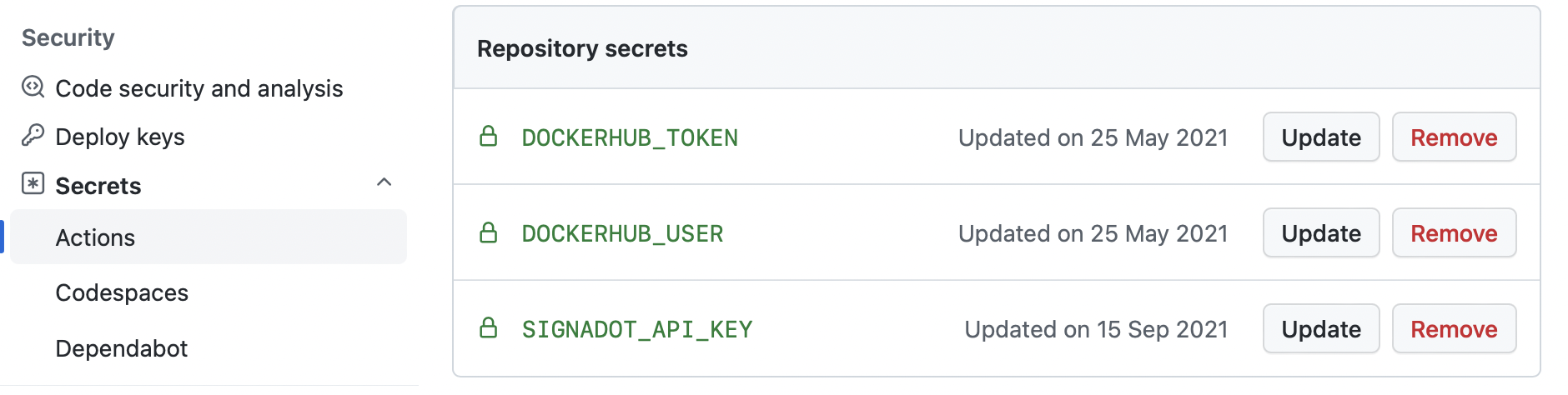
To set up the GitHub secret for a repository, you will need to create a secret
for GitHub Actions containing the Signadot API key as a value. To do so,
edit secrets in the settings for the repository, as in the screenshot
below.
Using the Signadot Sandbox Action
The workflow below creates a sandbox for every pull request, forking the
my-svc deployment with the image built for the commit, and then calls the
sandbox using the routing key the Action returns.
name: Pull request sandbox
on:
  pull_request:

jobs:
  sandbox:
    runs-on: ubuntu-latest
    # dependency on building the image for the service
    needs: [ build ]
    steps:
      - name: Create or update the sandbox
        id: sbx
        uses: signadot/sandbox-action@82046cb21baee7795224d33c0e13e2ee75e95efb # v0.1.0
        with:
          api-key: ${{ secrets.SIGNADOT_API_KEY }}
          org: my-org
          cluster: my-cluster
          fork: kind=Deployment,namespace=default,name=my-svc
          image: docker-user/repo:${{ github.sha }}

      - name: Call the sandbox
        run: |
          curl -H "baggage: sd-routing-key=${{ steps.sbx.outputs.routing-key }}" \
            https://my-svc.internal.example.com/api
The uses: line pins the Action to the commit of release v0.1.0, with the
version in a trailing comment. This is the form many organizations require for
third-party actions, and the one Dependabot keeps up to date; @v0.1.0 works
too. The README covers how
the Action is versioned and which signadot CLI it runs.
The sandbox is named my-svc-42 for pull request 42 in a repository named
my-svc, so every push to the pull request updates the same sandbox in place.
The step outputs are sandbox-name, routing-key, preview-url and
preview-urls, dashboard-url, and rendered-spec, the specification that was
applied. The Action also takes resources, labels, description and ttl;
the README documents every input and output.
The Action is built for pull_request workflows. A push, workflow_run or
merge_group run has no pull request number, so each run creates a new sandbox
named after the commit and nothing deletes it. If you run it there, set ttl or
delete the sandbox in the workflow.
Sandbox lifecycle
The Action does not delete sandboxes itself. By default it adds the labels that
let the Signadot GitHub App delete the
sandbox when the pull request is closed or merged. If the App is not installed,
the labels do nothing and nothing deletes the sandbox: set ttl (for example
ttl: 2d) so that it expires, or delete it from the workflow with the delete
sub-action. The README covers the
lifecycle options and the
delete sub-action.
Going further
The rest is in the Action's README, which is kept current with each release:
- Forking more than one workload,
with an
imageconvention shared by every fork, per-forkenv, and previewendpoints. - Applying a template you own
through the Action, with
template-fileandset, including what the Action adds to the template and which values win when both the template and the step set one. - Running
signadotdirectly in later steps with theinstall-clisub-action, for example to run Smart Tests or Jobs against the sandbox.
Using the Signadot CLI with your own template
If you would rather drive the CLI yourself, the workflow stores a sandbox
specification template in the repository and applies it with
signadot sandbox apply, supplying the values that vary per pull request. You
choose the sandbox name, add the GitHub App labels, and delete the sandbox, in
the workflow.
Adding a Sandbox Specification
When a sandbox is created in a CI context, in general it needs to be tailored to run the changes represented in a pull request or commit. These customizations serve to identify the sandbox in a way that can be associated with the commit and to have the sandbox set up to run the changes in the commit.
To accomplish this, a template of the sandbox
specification, in the form of a yaml file is
stored within the git repository, by convention in
.signadot/<service-name>-template.yaml. The sandbox template below provides
a simple example that is setting up a sandbox for a single service
called my-svc.
name: "@{name}"
spec:
  cluster: "@{cluster}"
  forks:
  - forkOf:
      kind: Deployment
      namespace: default
      name: my-svc
    customizations:
      images:
      - image: "@{image}"
To have the Signadot GitHub App delete the sandbox when the pull request closes, add the two labels described under Specification below to the template.
Applying the template with the CLI
Below shows a commented GitHub Actions job which runs signadot to set up a
sandbox for each new commit and optionally run tests against it. The
specification in use in the example below is along the lines of the sandbox
template specified above.
jobs:
  run-tests:
    runs-on: ubuntu-latest
    # dependency on building image for a service.
    needs: [ build, changes ]
    env:
      SIGNADOT_ORG: signadot
      SIGNADOT_API_KEY: ${{ secrets.SIGNADOT_API_KEY }}
      SIGNADOT_CLUSTER: demo
      IMAGE_TAG: ${{ github.sha }}
    steps:
      - name: Set up Signadot CLI
        run: |
          curl -sSLf https://raw.githubusercontent.com/signadot/cli/main/scripts/install.sh | sh

      # Create / update sandbox
      - name: Apply Sandbox
        run: |
          # Define the sandbox name using a short version of the gitsha to respect the
          # limit (30 chars)
          export SANDBOX_NAME="my-svc-${IMAGE_TAG:0:6}"
          echo "SANDBOX_NAME=${SANDBOX_NAME}" >> "$GITHUB_ENV"

          # Create the sandbox
          echo "Creating sandbox ${SANDBOX_NAME}..."
          signadot sandbox apply \
            --set name=${SANDBOX_NAME} \
            --set image=docker-user/repo:${IMAGE_TAG} \
            --set cluster=${SIGNADOT_CLUSTER} \
            -f - \
            < ${GITHUB_WORKSPACE}/.signadot/my-svc-template.yaml

      # Optionally run automated tests using jobs
      - name: Run Automated Tests
        run: |
          echo "Running automated tests..."
          signadot job submit --attach \
            --set branch=... \
            -f - \
            < ${GITHUB_WORKSPACE}/.signadot/job.yaml

      # Optionally delete the sandbox if only running automated tests
      # else you may omit this and delete on PR close / using TTL
      - name: Delete Sandbox
        run: |
          echo "Deleting sandbox..."
          signadot sandbox delete ${SANDBOX_NAME}
You can find a real-life example of using sandboxes within GitHub Actions in our HOT R.O.D repository.
Setting up the Signadot GitHub App
Installation
The Signadot GitHub App enables enhanced integration with GitHub by displaying sandbox status updates directly within Pull Requests and managing automatic sandbox deletion.
To set up the integration with GitHub, you will need to initiate the integration workflow through the Signadot Dashboard under Admin > General > GitHub Integration. This will guide you to install the Signadot GitHub application into your GitHub organization.
After installing the app, you should be redirected back to the Signadot Dashboard where the new GitHub integration is listed. If you are not returned to the dashboard or the integration does not appear, remove the Signadot GitHub App from your GitHub organization and initiate the installation again from the dashboard.
Once the integration has been set up, it can then be used in the sandboxes you create using Sandbox Labels.
If your GitHub organization has an IP allow list configured, the Signadot GitHub App must be whitelisted to function properly.
We automatically include the necessary exceptions in the app registration.
However, if needed, you can manually add 54.202.35.48 to your organization's
IP allow list. This is the currently designated public IP address from which the
Signadot GitHub application operates.
For more details, see: Allowing access by GitHub Apps
Displaying Sandbox Status in GitHub PRs
Once the GitHub App is installed and configured, it will automatically generate and update a comment on Pull Requests with sandbox status updates, including:
- Sandbox details: Name, routing key, preview URLs, associated route groups, and last update date.
- Smart Test execution results: Number of tests run with their status, a summary of detected Smart Diffs, and an overview of executed Checks.
Here you can see some examples of the generated comments:
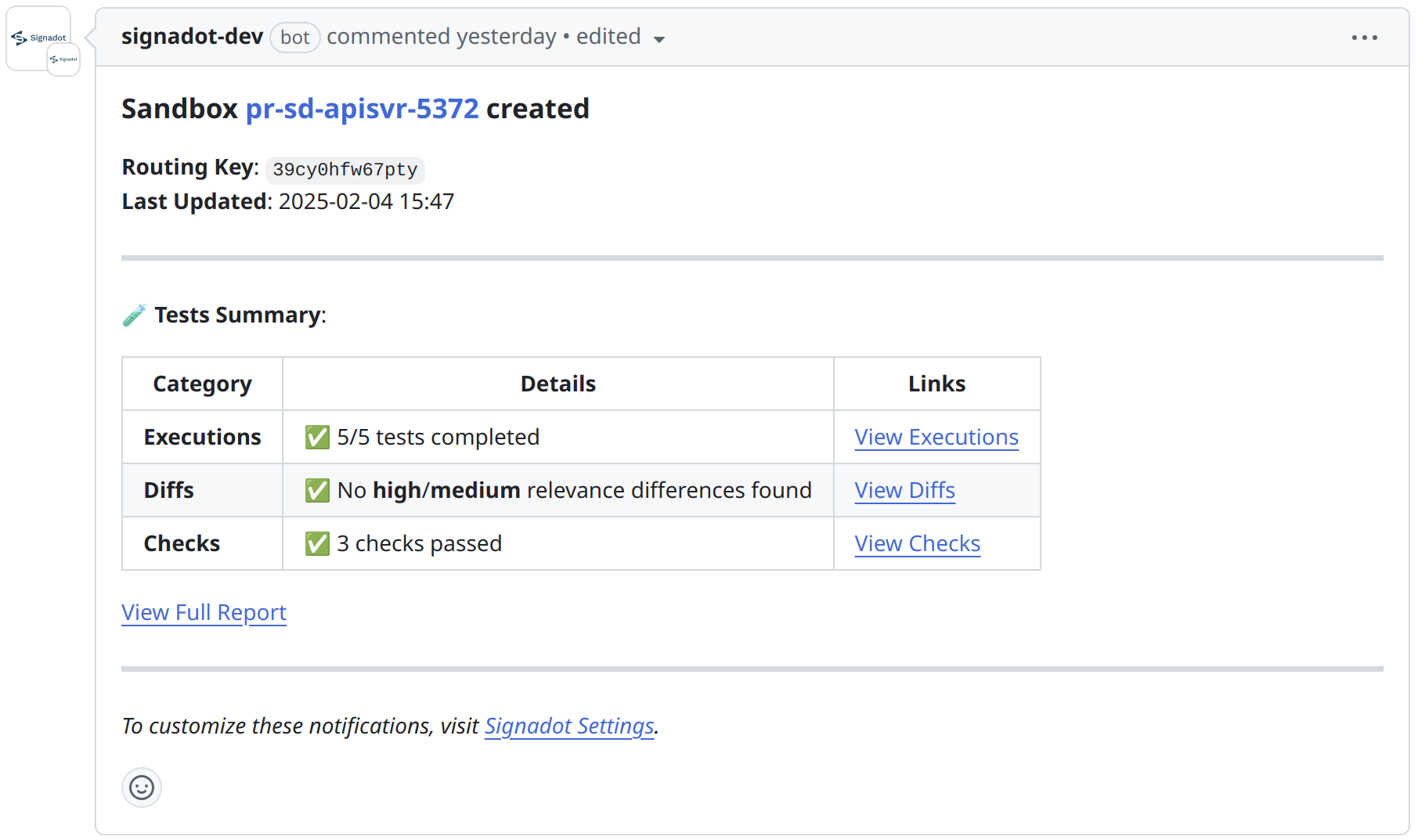
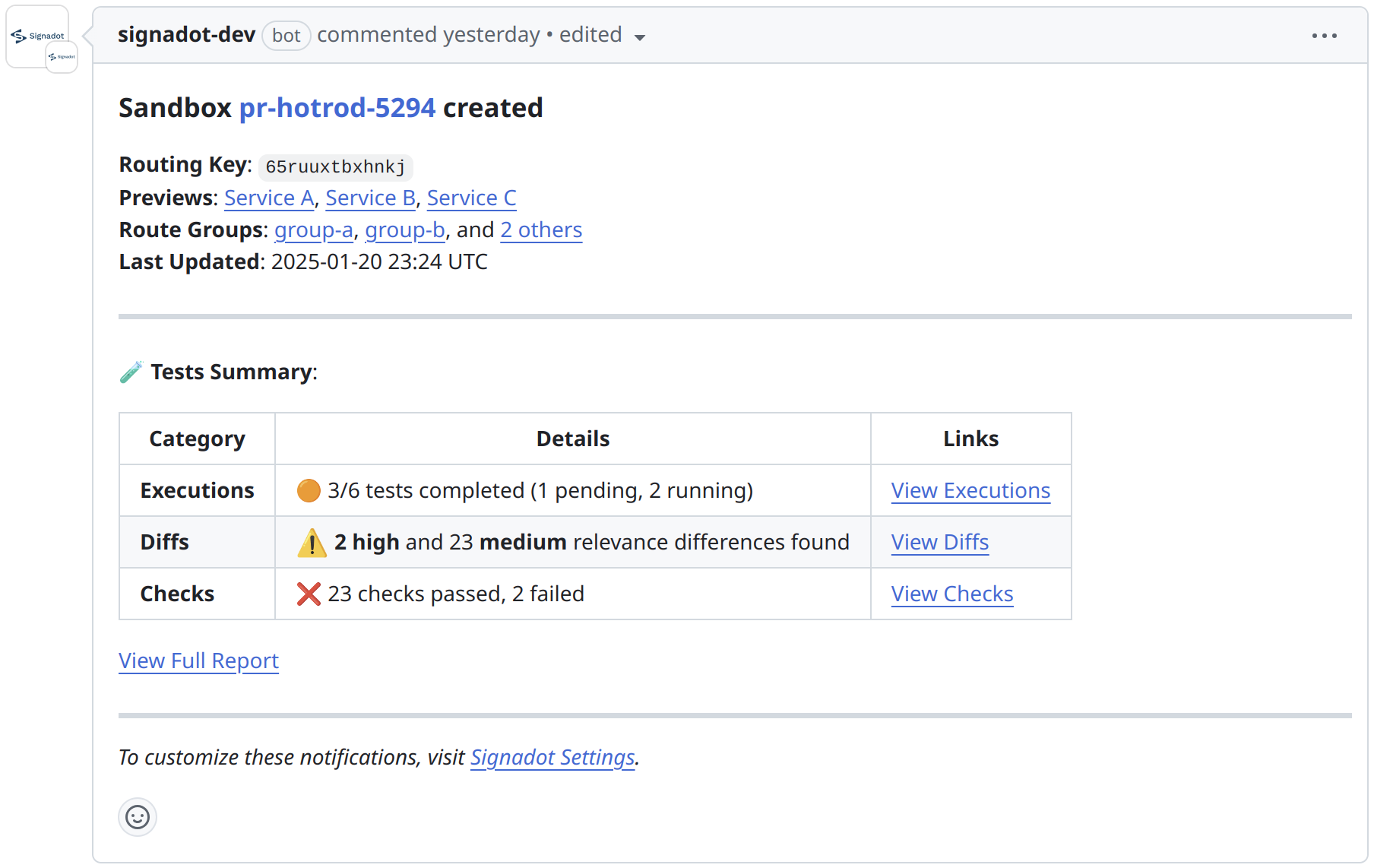
This feature is enabled by default, but you can turn it off through the Signadot Dashboard under Admin > General > GitHub Integration:

Automatic Deletion of Sandboxes
In the CLI workflow example above, the sandbox is deleted inline at the end of
the run-tests job, which is fine if you are only running automated tests. If
you are also using Signadot to perform previews, you will want to keep the
sandbox alive until the PR is merged or closed.
The Signadot GitHub App can be used to tie a Sandbox to the lifecycle of a GitHub Pull Request. The Sandbox is automatically deleted when the Pull Request is closed.
The Sandbox Action adds the labels this needs by default, including to a
template passed as template-file. If you run the CLI yourself, add them to
your template as described below.
Specification
Two special label keys can be used to specify the association with a GitHub pull request. These labels are:
| Label Key | Value | Example |
|---|---|---|
signadot/github-repo | path of GitHub repository (org/repo) | signadot/community |
signadot/github-pull-request | pull request number | "123" |
Example
To make use of this integration, typically you will want to add the above
template variables to the sandbox specification stored under .signadot in your
repository. An example specification is written as shown below:
name: pr-xyz-@{github-pr}
spec:
  cluster: signadot-staging
  description: sandbox for @{github-pr}
  labels:
    signadot/github-repo: "github-org/github-repo"
    signadot/github-pull-request: "@{github-pr}"
  forks:
  - forkOf:
      kind: Deployment
      namespace: workspaces
      name: web
    customizations:
      images:
        - image: "myrepo/image:@{tag}"
  defaultRouteGroup:
    # ...