Agentic Local Development
Overview
Most local changes are now written by a coding agent. Signadot lets the agent check its own work against the real system instead of mocks: it runs the service it changed on your machine, connects it to your Kubernetes cluster through a sandbox, and sends traffic through the rest of the stack with a routing key. Only requests that carry that key reach your local process, so everyone else on the cluster keeps using the baseline.
Unlike the Ephemeral Environments quickstart, where the changed service runs in the cluster from a built image, here it runs from source on your machine, so there's nothing to build or deploy while the agent iterates.
You give the agent two things:
- The Signadot MCP server, which lets it list clusters and workloads and create sandboxes.
- The Signadot agent skills, which teach it the workflow.
signadot-validateruns the changed service locally in a sandbox and iterates until the change works through the cluster.signadot-planturns your team's tests into a reusable plan thatsignadot-validateruns on every change (see Run Tests with Plans).
Using the HotROD sample application, you'll:
- Connect your machine to the cluster
- Give your coding agent the MCP server and skills
- Ask the agent to change the
routeservice and validate the change end to end - Check the result in your browser, then keep iterating with the agent
Your cluster can be safely shared across your team and their agents. A sandbox with a local mapping only receives requests that carry its routing key, so several developers and agents can work on the same cluster at the same time without affecting each other or the baseline.
Setup
Before you begin, you'll need:
- Signadot account (sign up here)
- Signadot CLI (installation instructions)
- A coding agent that supports MCP and Agent Skills, such as Claude Code, Cursor or Codex
- Node.js with
npx, to install the agent skills - Go, to run the HotROD services locally
- A Kubernetes cluster
Option 1: Set up on your own Kubernetes cluster
Using minikube, k3s, or any other Kubernetes cluster:
- Install the Signadot Operator: Install the operator into your cluster.
- Install the HotROD Application: Install the demo app using the appropriate overlay:
- Linkerd / No Mesh
- Istio
kubectl create ns hotrod --dry-run=client -o yaml | kubectl apply -f -
kubectl -n hotrod apply -k 'https://github.com/signadot/hotrod/k8s/overlays/prod/devmesh'
kubectl create ns hotrod --dry-run=client -o yaml | kubectl apply -f -
kubectl -n hotrod apply -k 'https://github.com/signadot/hotrod/k8s/overlays/prod/istio'
Option 2: Use a Playground Cluster
Alternatively, provision a Playground Cluster that comes with everything pre-installed.
Demo App: HotROD
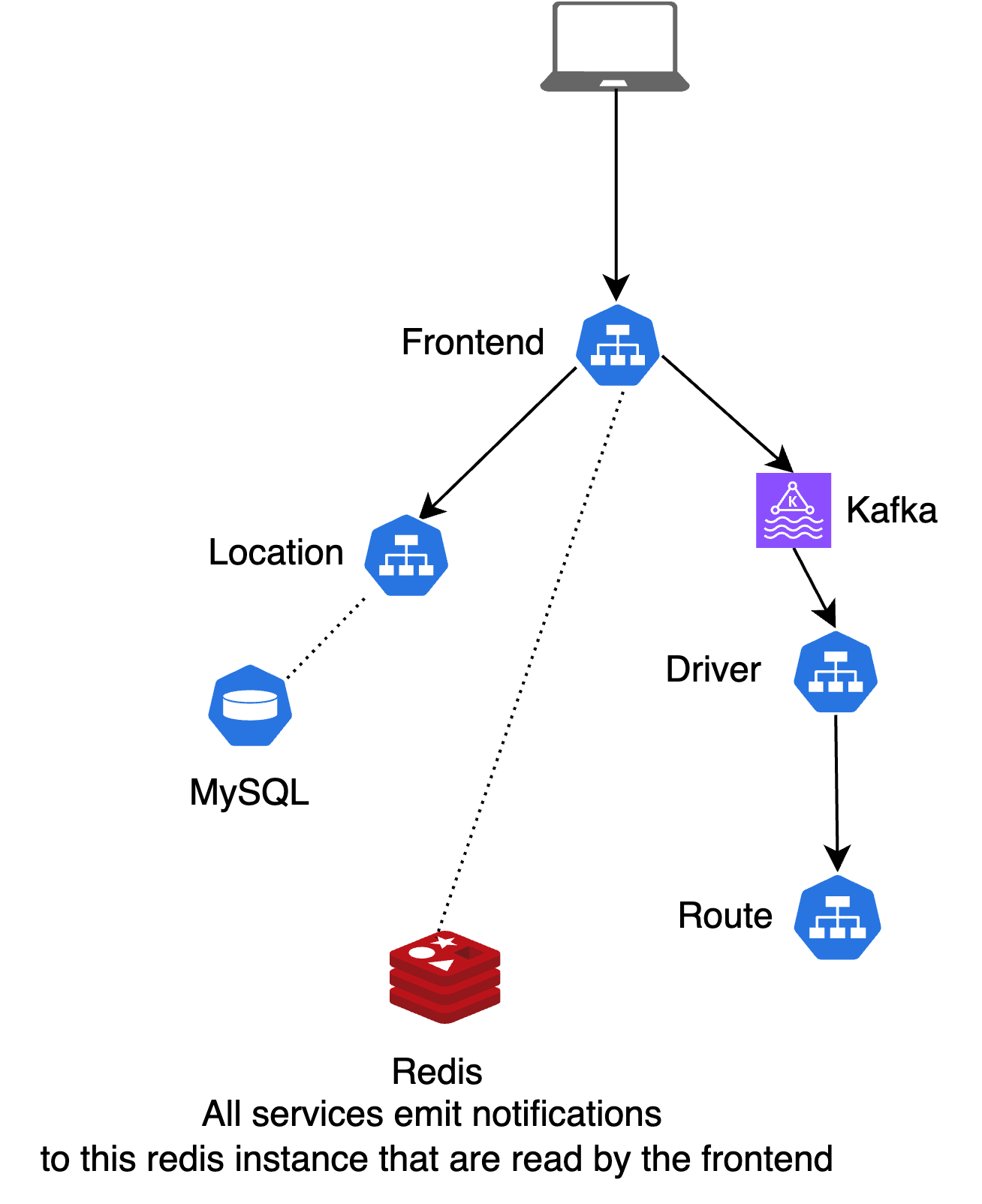
HotROD is a ride-sharing application with four microservices:
frontend: Web UI for requesting ridesdriver: Manages drivers in the systemroute: Calculates ETAslocation: Provides available pickup and dropoff locations for riders
The services use Kafka as a message queue, and Redis and MySQL for data storage.
Step 1: Connect your machine to the cluster
Your agent needs to reach cluster services by their Kubernetes DNS names, and the cluster needs to reach the service running on your machine. signadot local connect sets up both. It changes your local network configuration and asks for your password, so you run it yourself rather than leaving it to the agent.
Authenticate the CLI:
signadot auth login
Create $HOME/.signadot/config.yaml:
local:
  connections:
  - cluster: <cluster>    # From https://app.signadot.com/settings/clusters
    type: ControlPlaneProxy
ControlPlaneProxy connects your machine through the Signadot control plane, which is the quickest way to get started. It's intentionally rate-limited, so large assets can load slowly. For day-to-day development, switch to the PortForward or ProxyAddress connection types, which connect directly to the cluster.
Connect, then check that a cluster service answers from your machine:
Step 2: Give your agent Signadot
Add the Signadot MCP server to your agent, and install the Signadot agent skills:
- Claude Code
- Cursor
- Codex
- Other agents
claude mcp add --transport stdio signadot -- signadot mcp
npx skills add signadot/agent-skills -g -a claude-code -y
Check that the server is connected with claude mcp list, and that the skills are listed under /skills in a new Claude Code session.
Add the MCP server to ~/.cursor/mcp.json, or use the Install in Cursor button on the Cursor setup page:
{
  "mcpServers": {
    "signadot": {
      "command": "signadot",
      "args": ["mcp"]
    }
  }
}
Then install the skills:
npx skills add signadot/agent-skills -g -a cursor -y
codex mcp add signadot -- signadot mcp
npx skills add signadot/agent-skills -g -a codex -y
Check that the server is connected with codex mcp list.
Follow the MCP setup for other clients, then install the skills with npx skills add signadot/agent-skills. The skills CLI lists the agents it supports.
To confirm the agent can use Signadot, open it and ask:
List my Signadot clusters and the workloads in the
hotrodnamespace.
Step 3: Ask the agent to make and validate a change
Clone HotROD and open your agent in the repository:
git clone https://github.com/signadot/hotrod.git
cd hotrod
Then ask for a change and say how you want it validated:
In the HotROD
routeservice, make drivers arrive in seconds instead of minutes. Then validate the change with Signadot on cluster<cluster>: run the route service locally in a sandbox, request a ride throughhttp://frontend.hotrod.svc:8080with the sandbox's routing key, and show me the ETA you get with and without the key.
That's the only prompt this step needs. With the signadot-validate skill loaded, the agent works through these phases on its own, asking you to approve tool calls along the way:
- Makes the change. It edits the ETA calculation in the
routeservice, typically inservices/route/server.go. - Creates a sandbox. It uses the MCP server to find the
routeDeployment and its port, then creates a sandbox with a local mapping that sends keyedroutetraffic to the same port on your machine:name: local-route-dev
spec:
cluster: <cluster>
local:
- name: local-route
from:
kind: Deployment
namespace: hotrod
name: route
mappings:
- port: 8083
toLocal: localhost:8083 - Runs the service locally. It pulls the environment variables the
routeservice uses in the cluster withsignadot sandbox get-env, builds the service and starts it on your machine. - Validates through the cluster. It sends a ride request to the frontend's cluster address with the routing key, so the request goes through the real
frontend,driverandlocationservices and reaches your localrouteprocess. It compares the result with an unkeyed request, which stays on the baseline. A call tolocalhostdoesn't count, because it skips the cluster path. - Iterates, then reports. If something fails, such as a missing environment variable or a port conflict, it fixes the cause and runs the validation again. When it passes, it reports the sandbox name, the routing key, the commands it ran and what changed. It leaves the sandbox and the local process running so you can keep working.
Step 4: Check the result yourself
Use the routing key the agent reported to see the change in your browser:
- Signadot Chrome Extension (Recommended)
- Third-party Header-Setting Extension
- Install the Signadot Chrome Extension
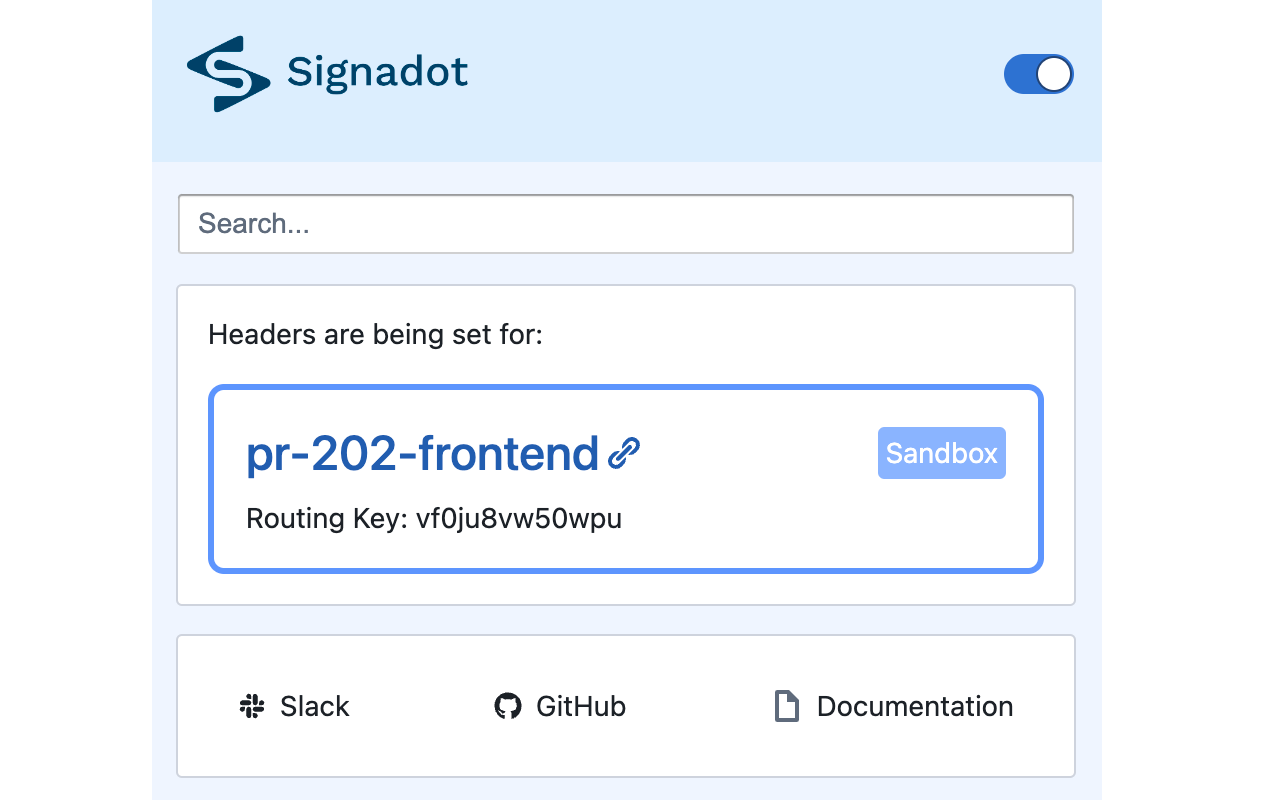
- Open the extension and search for the sandbox the agent created, such as
local-route-dev - The extension sets the routing key header for you
- Install any header-setting extension like Requestly
- Set the
baggageheader tosd-routing-key=<routing-key>, using the routing key the agent reported
Visit http://frontend.hotrod.svc:8080 and request a ride. With the routing key set, the ETA comes from the route service on your machine and is in seconds. Turn the extension off and the same request uses the baseline route service again.
Step 5: Keep iterating
Keep working in the same conversation. Follow-up requests, such as "make the ETA depend on distance" or "add a log line for every route calculation", reuse the same sandbox and routing key: the agent changes the code, restarts the local service and validates again. You can also watch the local service's output or attach a debugger, since the code under test runs on your machine.
Cleanup
The agent leaves the sandbox running by default. When you're done:
- Ask the agent to stop the local
routeprocess, or stop it yourself. - Delete the sandbox:
signadot sandbox delete local-route-dev - Disconnect from the cluster (optional):
signadot local disconnect
Do it by hand
The agent runs the same CLI commands you can run yourself. With signadot local connect running:
- Save the sandbox spec from Step 3 as
local-route.yaml, withcluster: "@{cluster}", and apply it:signadot sandbox apply -f ./local-route.yaml --set cluster=<cluster> - Load the
routeservice's cluster environment and start it locally from the HotROD repository:eval $(signadot sandbox get-env local-route-dev)
go run ./cmd/hotrod/main.go route - Set the routing key in your browser as in Step 4, then edit the route calculation (for example, this change), restart the service and refresh.
signadot sandbox get-env and signadot sandbox get-files need kubectl read access to workloads, ConfigMaps and Secrets for the cluster context of your local connection. See Set up Sandboxes with Local Mappings for more patterns.
How sandboxes with local mappings work
Sandboxes with local mappings work by:
- Establishing a secure bidirectional tunnel between the cluster and your workstation or development container
- Creating a routing rule in your cluster:
- Checks if the routing key for the sandbox is present in the request context
- If so, the request intended for the specified service is sent over the local mapping to
localhoston the specified port
This means:
- You only run the service you're changing locally
- All dependencies remain in the cluster
- Your local service gets real traffic with proper context
- Multiple developers and agents can have their own sandboxes with local mappings at the same time
Next steps
- Run Tests with Plans: have the agent wrap your existing end-to-end tests in a plan and run them against its sandbox on every change.
- Debug with Traffic Recording: record live traffic through a sandbox and override single endpoints locally.
- Agent Skills and the MCP server: what the skills do autonomously, what they ask you to approve, and every MCP tool.
- Agent tutorials for Claude Code, Cursor and Codex.
- Local Development guides and the local CLI reference.